
Add a Resource to a Project
Bring people onto a project so you can assign work, set allocations, and track effort.
You can add three types of resources to a project, and you can mix all three on the same project.
- Team Member. Full project collaboration across the schedule, tasks, status, budget, and the other project pages.
- Guest. Limited access to a subset of project data.
- Manual User. A placeholder name with no real user attached. If you are not sure of the resource yet, you can call it "Developer 1" and estimate properly.
You can open the Add Resource dialog in three ways:
- From the Project Team page, click the Add Resource button.
- From anywhere in the project, click the + Create button.
- From the QuickMenu icon within the project.

Team Member
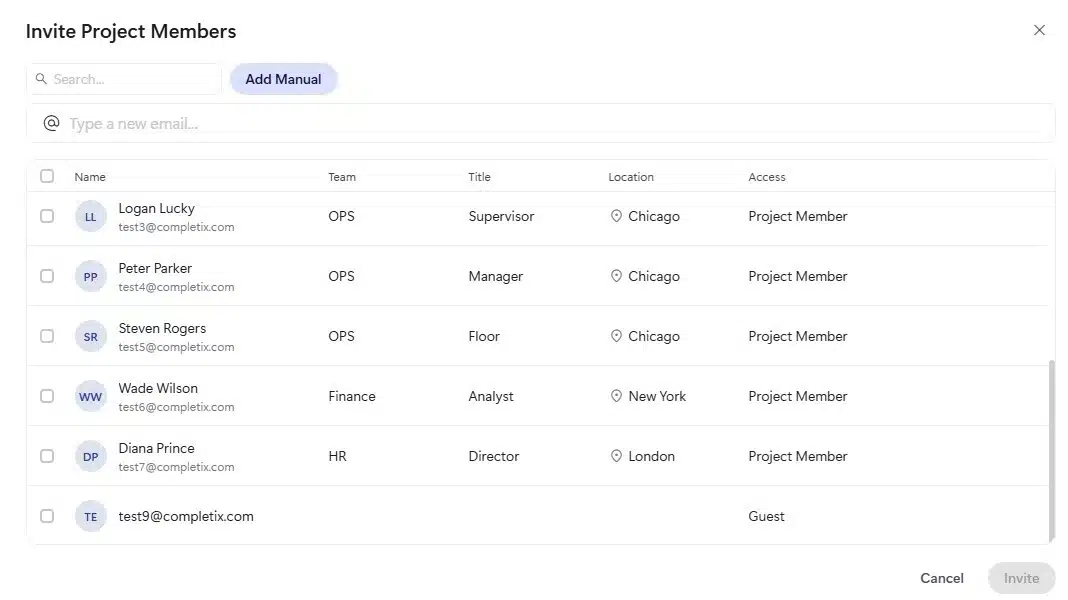
When you select Team Member, you can add an existing user from the dropdown, or invite a new user by typing the email address. You can also set the first allocation period, which you can change at any time later.
When you are done, click Add and the resource appears on the Project Team page.
Inviting a new user may be restricted by a role and depends on an available license.
Manual User
To add a Manual User, click the Add Manual button and enter a name.
Use a Manual User to hold a spot in the plan before you know who will fill it. The placeholder appears on the Project Team page, ready for planning and effort estimation until a real user is assigned.
Guest

To add a Guest, type the guest's email address into the Invite a guest to your site dialog, then click Invite. The guest then appears on the Project Team page.
Guests see only a subset of project data.
Adding a Guest may be restricted by a role.


